Scheduled Runs
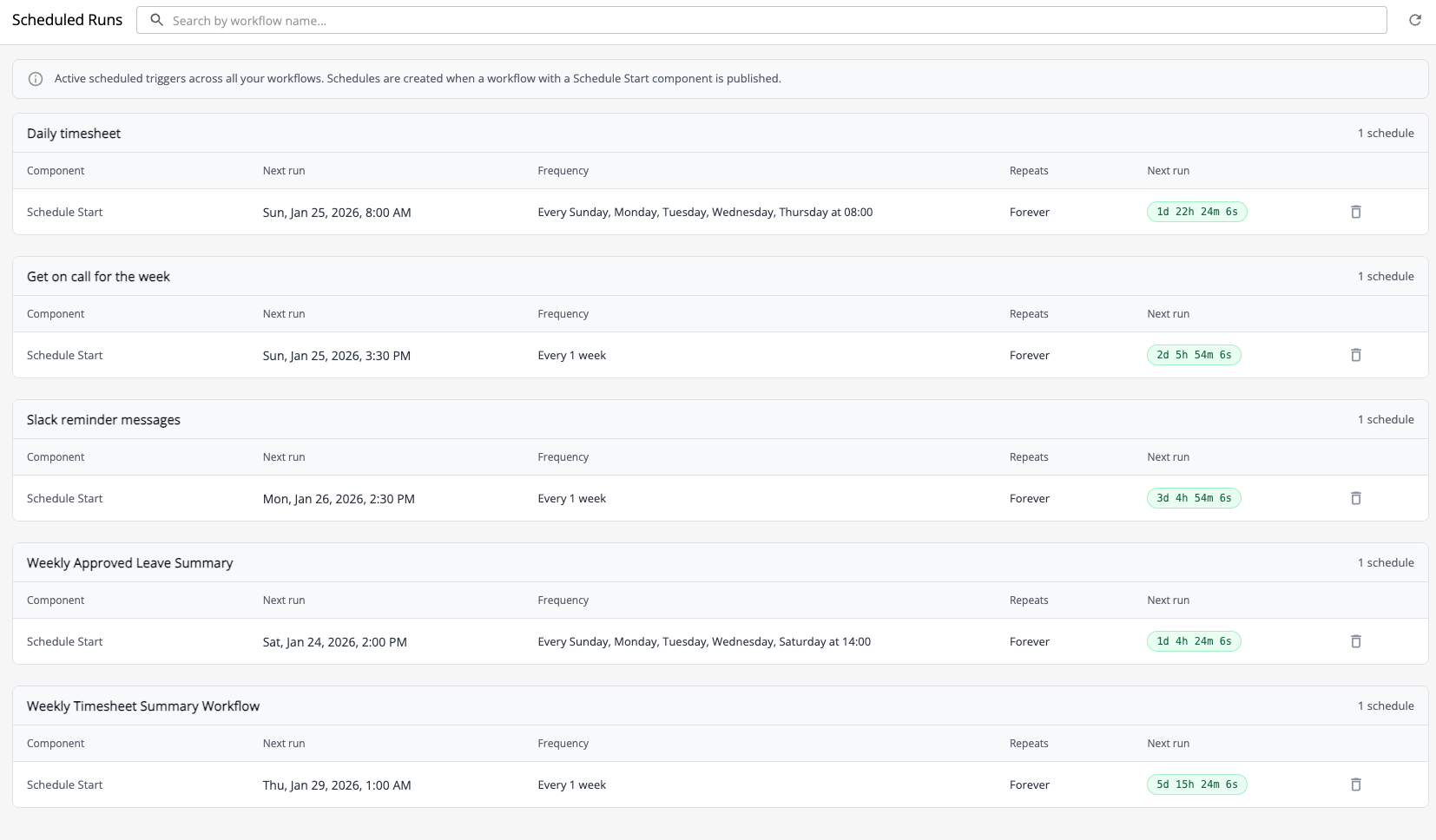
The Scheduled Runs page provides a centralized view of all active scheduled triggers across your workflows. This page allows you to monitor upcoming workflow runs and manage schedules created by Schedule Start components.
Accessing Scheduled Runs
You can access the Scheduled Runs page from the main navigation menu by clicking on Scheduled Runs.
Understanding the Scheduled Runs Page
The Scheduled Runs page displays all active schedules grouped by workflow. Each workflow group shows:
- Workflow name - Click to navigate to the workflow canvas
- Number of schedules - Total count of active schedules for that workflow
Schedule Details
For each schedule, you can see the following information:
| Column | Description |
|---|---|
| Component | The Schedule Start component that created this schedule. Click to navigate to that component on the canvas. |
| Next Run | The next date and time when this schedule will trigger the workflow |
| Frequency | How often the schedule repeats (e.g., "Every 24 hours", "Every week") |
| Repeats | Number of times the schedule will repeat, or "Forever" for unlimited |
| Status | Time until the next run (e.g., "In 2h 30m", "Running soon") |
| Version | The workflow version this schedule will run |
Status Indicators
Schedules display different status indicators:
- Upcoming (highlighted) - The schedule will run within the next hour
- Pending - The schedule is active and waiting for its next run time
- Completed - A one-time schedule that has already run
Searching for Schedules
Use the search bar at the top of the page to filter schedules by workflow name. This is useful when you have many workflows with active schedules and need to find a specific one.
Viewing Schedules for a Specific Workflow
You can also view schedules for a single workflow by navigating to the workflow canvas and clicking the Schedules button in the toolbar.
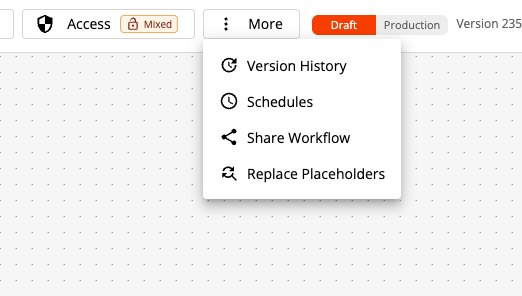
This opens a focused view showing only the schedules for that particular workflow.
Managing Schedules
Deleting Individual Schedules
To delete a specific schedule, click the delete icon (trash) next to that schedule. A confirmation will be requested before the schedule is removed.
Deleting a schedule will immediately stop that scheduled trigger. The workflow will no longer run at the scheduled time.
Deleting All Schedules for a Workflow
From the workflow-specific schedules view, you can delete all schedules for that workflow at once by clicking the Delete all button in the table header.
This action will remove all active schedules for the workflow. If you want to stop all scheduled runs, consider unpublishing the workflow instead, which will also remove all schedules but can be easily reversed by publishing again.
How Schedules Are Created
Schedules are automatically created when you publish a workflow that contains a Schedule Start component. The schedule configuration (start time, frequency, repeats) is determined by the settings in the Schedule Start component.
Schedule Lifecycle
- Created - When a workflow with a Schedule Start component is published
- Active - The schedule waits for its configured run time
- Triggered - At the scheduled time, a new workflow session is started
- Repeats - If configured to repeat, the schedule continues to trigger at the specified interval
- Completed - One-time schedules are removed after they run; repeating schedules continue until the repeat limit is reached or the workflow is unpublished
Refreshing the Schedule List
Click the refresh button to update the list of schedules and their next run times. This is useful if you've recently published workflow changes or want to see the most current schedule status.
Related Topics
- Schedule Start Component - Configure time-based workflow triggers
- Publishing a Workflow - How to publish workflows to activate schedules
- Unpublishing a Workflow - How to unpublish workflows and deactivate all schedules
- Session Runs - View workflow sessions created by scheduled runs